
Contents
- 1. In One Line
- 2. Quick Card
- 3. Before You Start
- 4. Sign-Up and Installation
- 4.1 Signing Up on the Website
- 4.2 Download, Signature Check and Installation (Windows)
- 4.3 Sign-Up and Installation on Mac (per the official documentation; no Mac was available for testing)
- 4.4 The First Screen: Settings
- 4.5 Connecting Google Meet, Zoom and Teams
- 4.6 Checking That Everything Works
- 5. First Settings, Security and Privacy
- 6. Basic Use
- 7. What Else You Can Do
- 8. Common Problems
- 9. Limitations and Alternatives
- 10. Sources and Updates
- What This Guide Does Not Cover
- Sources
1. In One Line
Fathom records Zoom, Google Meet and Microsoft Teams meetings, transcribes them and produces a summary and a list of action items. It is suited to meetings held in English.
Not suitable for meetings in Hebrew. The tool does not transcribe Hebrew and may produce incorrect English text instead (tested hands-on, 8 November 2026). Are your meetings in Hebrew? Do not install it — go to Part 9 (alternatives).
Three things to know up front; details in Parts 5, 6 and 9:
- New-account defaults widen exposure: every meeting is recorded automatically, and share links are open to anyone who has them.
- The bot waits for a second participant. When you are alone, it does not record until someone joins.
- Leaving the meeting does not stop the recording when the bot and another participant stay. You stop it by removing the bot.
2. Quick Card
By the end of this part you will know whether the tool fits you on price, language and platform.
| Item | Status |
|---|---|
| Warning: Hebrew | Not supported. Tested hands-on, 2026-11-08 |
| Price | Free: $0. Premium: $20 billed monthly, or $16 billed annually. Team: $19 or $15, minimum 2 users. Business: $34 or $25, minimum 2. Enterprise: $35 per user, annual billing only (source: fathom.ai/pricing, checked: 2026-11-08) |
| Free plan | Unlimited recording and transcription, according to the pricing page. Advanced summaries: 5 per month, according to the help center only (checked: 2026-11-08) |
| On Free: what is temporary | A new account gets a 30-day Preview (tested hands-on). According to the help center, AI Action Items and Ask Fathom are Premium features, and Free loses them when the Preview ends. A banner promised unlimited Ask Fathom until 1 December 2026. Do not rely on them on Free |
| Hebrew | Not supported. There is also no language selector in Settings on Free (tested hands-on) |
| Platforms | Windows and Mac (Desktop app), Zoom, Google Meet, Teams, web and iOS. Tested hands-on: Windows (Fathom Classic), the website, Google Meet and some Zoom |
| On Windows and Mac | Windows offers only Fathom Classic, with a bot. Bot-free mode is marked "Coming Soon to Windows". Mac may offer bot-free mode (per the documentation, not tested) |
| Installation time | Not measured. A download of about 156MB, installation and sign-in |
| Time to first result | In an English Meet meeting, 13 minutes passed from joining to the summary email. Processing itself took about a minute |
| Security rating | Yellow, medium risk. The tool records other people, and on a new account some defaults widen exposure |
3. Before You Start
By the end of this part you will know what to prepare so that sign-up does not get stuck.
- Calendar: a Google or Microsoft calendar is required. Fathom reads only the primary calendar (source). Meetings on a secondary calendar are marked Impromptu.
- Consumer email (gmail, yahoo, outlook.com): you need at least one meeting in the coming week with a Zoom, Meet or Teams link (Quick Start Guide). Create it before signing up. You cannot open a second free account with the same email.
- Computer: tested on Windows 11. The installation screen blocks the website until you install the app, so you need permission to install software. For Mac: macOS 14.2 or later for bot-free mode (Part 4.3).
- Free time: set aside an hour with no meetings on your calendar for sign-up, installation and Part 5. The reason is explained in 4.1.
- Google Meet: the host must be in the meeting and admit the bot from the lobby.
- Zoom in an organization that blocks apps: a Zoom admin's approval is required (Zoom Admin Approval).
- Organization: ask your IT manager or privacy officer before you record other people.
- Prepare: a dedicated email address for the trial, a calendar event with a Meet link, and a short script in English with dummy data (Part 6).
4. Sign-Up and Installation
By the end of this part you will have an account, a connected app and a check that everything works. Tested hands-on on Windows on 8 November 2026. A step without a screenshot is marked "No screenshot for this step", and anything not tested is marked "per the official documentation".
4.1 Signing Up on the Website
Open the website
Go to fathom.ai and click Sign Up Free. The sign-up page opens at fathom.video/users/sign_up. If you cannot find the button, look for a sign-up link in the top header.
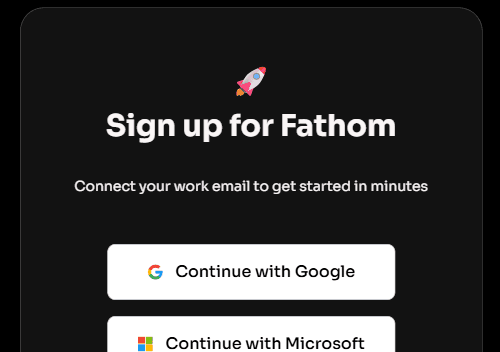
The sign-up page Choose how to sign in
The sign-up screen offers Continue with Google and Continue with Microsoft (personal or work account). Choose the account that holds your calendar, because Fathom detects meetings from the calendar. Tested hands-on: Google. Microsoft was not tested. The sign-in screen also shows Continue with SSO, sign-in through your organization, usually with IT admin approval (not tested). If a consumer email is blocked, go back to Part 3.
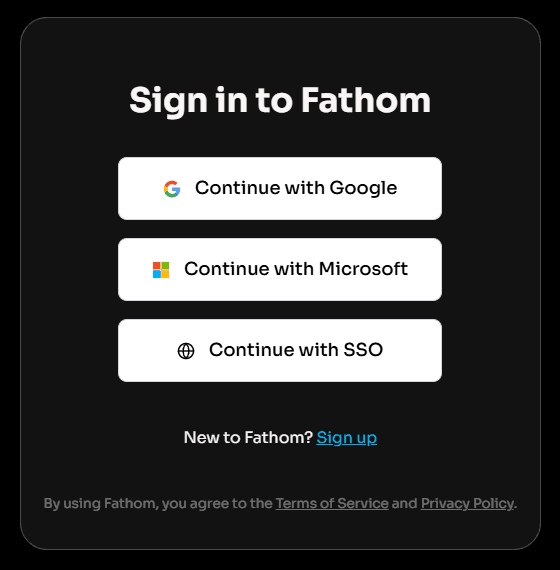
The sign-in screen, which also shows SSO Approve the calendar permission on Google's screen
(Per the official documentation: sign-up was performed hands-on, but this screen was not captured. No screenshot for this step.) After you choose Google, Google shows its own permission window. What is requested, according to the privacy policy and the Quick Start Guide (checked: 2026-11-08):
- Read access to the calendar. Fathom defines the data as "read-only". It reads the event name, date, time, location, meeting link and attendee list in order to show upcoming meetings. It does not change meetings.
- Basic account details: name, email address and profile picture.
- What to approve: both of these. Without the calendar connection the service cannot be used, and if you revoke the permission in your Google account, the Fathom account is blocked until you reconnect.
- Which account: choose the Google account that holds your meetings. Fathom reads only the primary calendar.
- When to stop: if you are asked for a permission that does not match this description (for example email or Drive), do not approve, and contact help@fathom.video. What the screen actually requests was not tested.
- With Microsoft the process is similar, per the documentation (not tested).
The Personalize screen
(Per the official documentation: it asks you to describe how you work and to connect a CRM. The fields were not documented. No screenshot for this step.) What to choose: answer briefly and accurately, and do not enter information that is not required. Do not connect a CRM now: you can do that later under Settings › Integrations (Part 7).
Note the default before you continue
On a new account the Auto-record setting is All meetings (observed hands-on). Once the calendar is connected and the app is open, any event with a video link may be recorded — including a meeting you did not intend to record, such as the one you created before signing up. The Quick Start Guide recommends automatic recording, but for a meeting with other people you need to decide in advance. After installation, go straight to Settings (Part 5) and change it to No meetings, before the next meeting on your calendar.
Continue to the Install Desktop App screen
It blocks the website: direct addresses on fathom.video redirected back to it, and no Skip button was found (tested hands-on). Continue to 4.2.
Do not enter a credit card. A new Free account shows "30 days left in Free Preview" with Upgrade Now. It was not clicked and no payment details were entered.
4.2 Download, Signature Check and Installation (Windows)
Download
On the Install Desktop App screen, under Fathom CLASSIC, click Download for Windows. The file
Fathom-1.42.18.Setup.exedownloads, about 156MB (the version may change). Download only from the official website. You can also use fathom.video/download. If nothing downloads, check your Downloads folder. Windows offers only Fathom Classic: the bot-free mode button is marked "Coming Soon to Windows" (Notify Me, not clicked).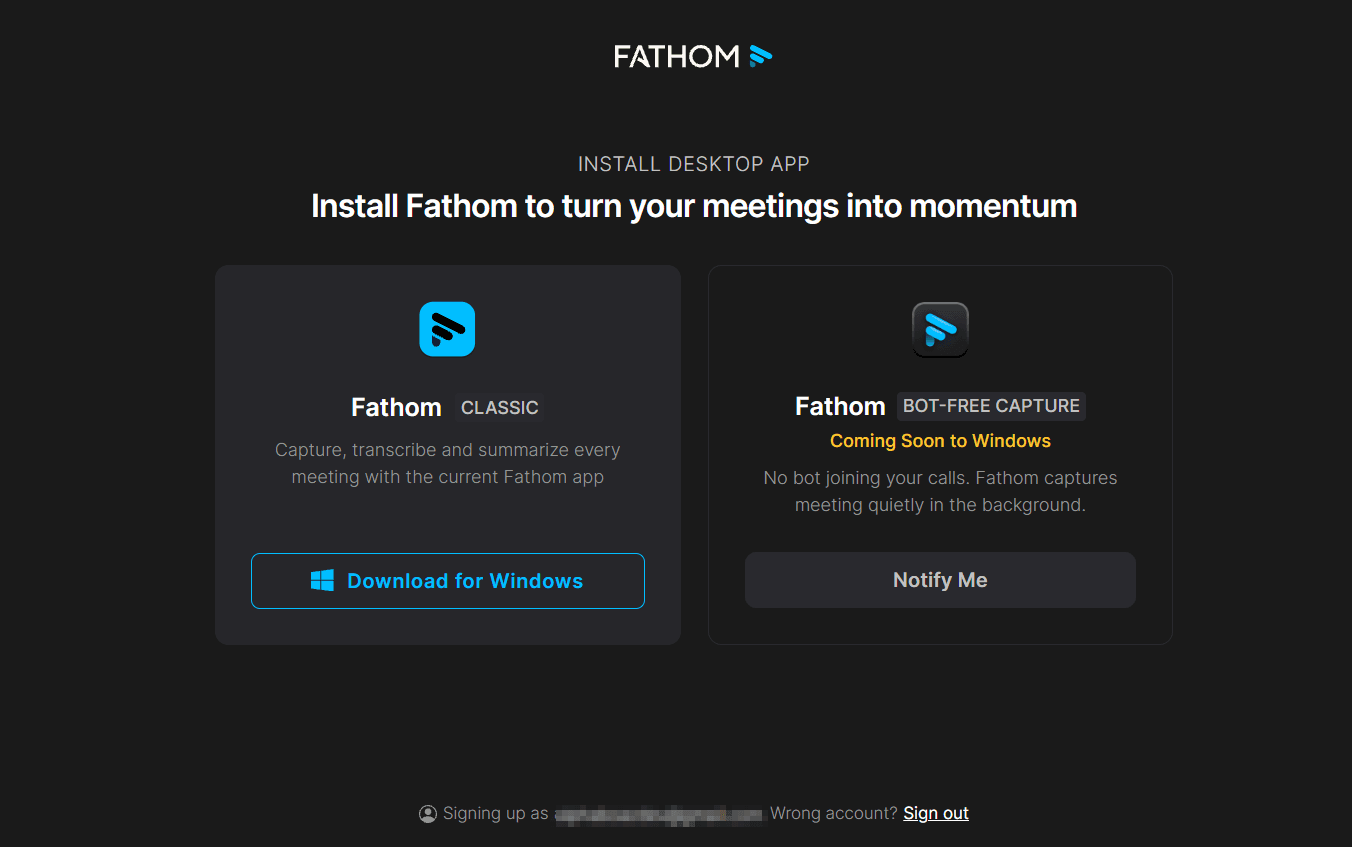
The Install Desktop App screen 
The installer in the Downloads folder Open PowerShell
This is a mandatory step before you run the file: checking the digital signature. The signature shows who published the file and that it was not altered on the way. It does not guarantee that the software is safe. How to open it (general Windows description, not captured):
Click the Start button, the Windows logo on the taskbar.
Type
PowerShell.Press Enter. A window opens with a text line ending in the
>sign.
No screenshot for this step.
Run the check
Copy the command, paste it into the window (Ctrl+V) and press Enter. Adjust the file name if your version is different:
Get-AuthenticodeSignature "$env:USERPROFILE\Downloads\Fathom-1.42.18.Setup.exe" | Format-List Status, SignerCertificateRead the result
What is correct: Status with the value Valid, and a signer name containing Superhuman Platform Inc. This is how our check looked (2026-11-08). The example is for illustration only and was not captured (per the official documentation of Get-AuthenticodeSignature). The exact field details may differ:
Status            : Valid
SignerCertificate : [Subject]
                      CN=Superhuman Platform Inc., ...
The name differs from the product name because Superhuman (formerly Grammarly) announced on 14 September 2026 that it was acquiring Fathom (the official announcement, checked: 2026-11-08). What is not correct: any status other than Valid, or a different signer name. Do not install. Delete the file and download it again from fathom.video. An alternative without the command line: right-click the file, Properties, the Digital Signatures tab, select the signature and click Details (not tested). No screenshot for this step.
Install
Double-click the file. The installation screens themselves were not captured, and the help center does not describe them. We only observed that the installation completed (version 1.42.18). Windows may show security windows (general description based on Microsoft's SmartScreen and UAC documentation, not tested with this file):
- SmartScreen: a warning about a file that is not well known (general description). Make sure the publisher matches the signer name from step 4, and only then click More info and then Run anyway.
- UAC: a window asking you to approve changes to the computer, showing the publisher's name. If the name matches, click Yes.
- Setup wizard: if a window opens with a continue or Install button, click it. Do not change settings you do not understand. If nothing opens, wait about a minute and go to step 6.
No screenshot for this step.
Find the app and sign in
According to Fathom Desktop App, you open it from the Fathom icon in the system tray (bottom-right corner, sometimes behind an arrow), or through Windows search: type Fathom and click it. It opens at the top centre of the screen. Choose Continue with Google, Continue with Microsoft or Continue with SSO, with the same account as on the website. Tested hands-on: sign-in succeeded. What the sign-in window looks like: not captured. No screenshot for this step.
Check that the website opens
After installation and sign-in, the website opens on the My Calls screen with "No call recordings". If you see the installation screen again, sign in again in the app. No screenshot for this step.
4.3 Sign-Up and Installation on Mac (per the official documentation; no Mac was available for testing)
None of the steps here were performed, and there are no screenshots. Sources (checked: 2026-11-08): Fathom Desktop App, Using Fathom with Google Meet and Mac permissions.
The difference from Windows: on Windows only the bot version was tested. On Mac there is a new bot-free version, and users who are not yet eligible still get the previous one, with a bot (per the Quick Start Guide and the Zoom article).
| Item | Windows | Mac |
|---|---|---|
| Version | Fathom Classic, with a bot (tested) | Bot-free, or the previous version depending on eligibility |
| Operating system | Windows 11 (tested) | macOS 14.2 or later for the bot-free version |
| Google Meet | Bot in the lobby, no extension (tested) | Bot-free: Chrome extension required |
| System permissions | Not documented in the official sources; not tested | Recording permissions required (step 4) |
Check your version
Apple menu, then About This Mac. Version 14.2 or later is required for bot-free mode.
Download
From fathom.video/download, or from the direct link fathom.video/download/macos. The name of the Mac button is not stated in the source.
Open the file and install
The installation and signature screens of the Mac version are not described in the sources, so it is not known which name the Gatekeeper message shows. If the message says the publisher cannot be verified, or the name is unfamiliar, do not open it and contact your IT manager. After installation, sign in with the same account as on the website.
Approve two permissions
In System Settings › Privacy & Security. Enable Fathom under Screen & System Audio Recording, and also under the separate permission System Audio Recording Only. If a permission is stuck, remove Fathom from the list with the minus button (−), quit Fathom completely (Quit) and reopen it. Toggling off and on does not always reset it.
For bot-free Google Meet
In Settings › Fathom Apps, next to Chrome Extension, click Install and approve the permissions. Make sure the extension is active and signed in with your Fathom email (chrome://extensions). Complete this before your first meeting.
Choose how to record
In the bot-free version you choose this in the app menu: Auto-capture (which meetings) and Default capture mode. No bot appears in the meeting; instead, a consent message is sent in the chat when the Consent Chat Message setting is on.
Parts 5 and 6 were written for the bot version on Windows. In bot-free mode there is no bot in the lobby and no bot-removal step, and setting names may differ.
4.4 The First Screen: Settings
Open Settings
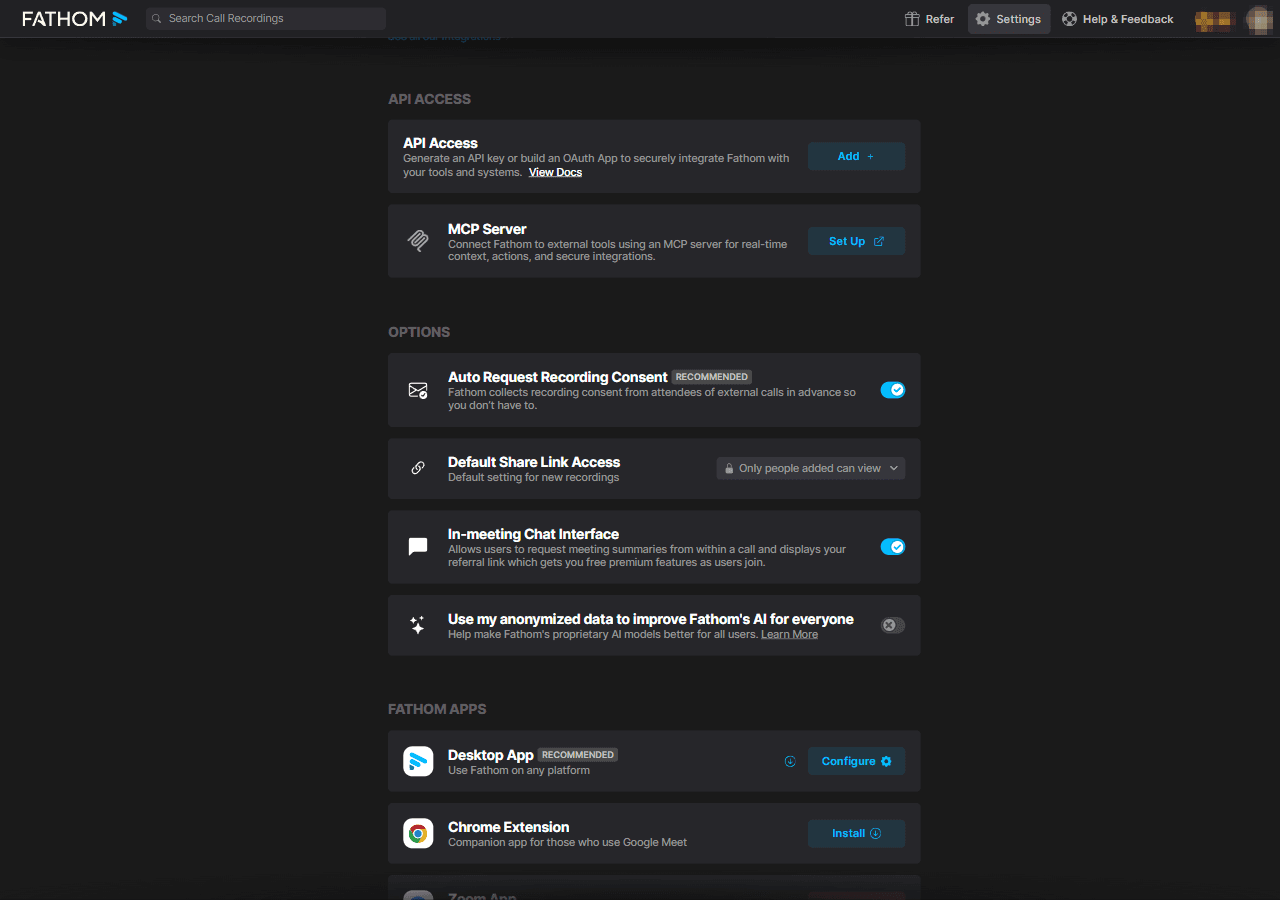
Click Settings in the website's top bar, or go to fathom.video/customize. The User Settings page opens. At the top is the Auto-record and auto-share row. Below it: Video Conferencing, Premium Features, Integrations, API Access, Options, Fathom Apps, Highlight Options and Delete Account.
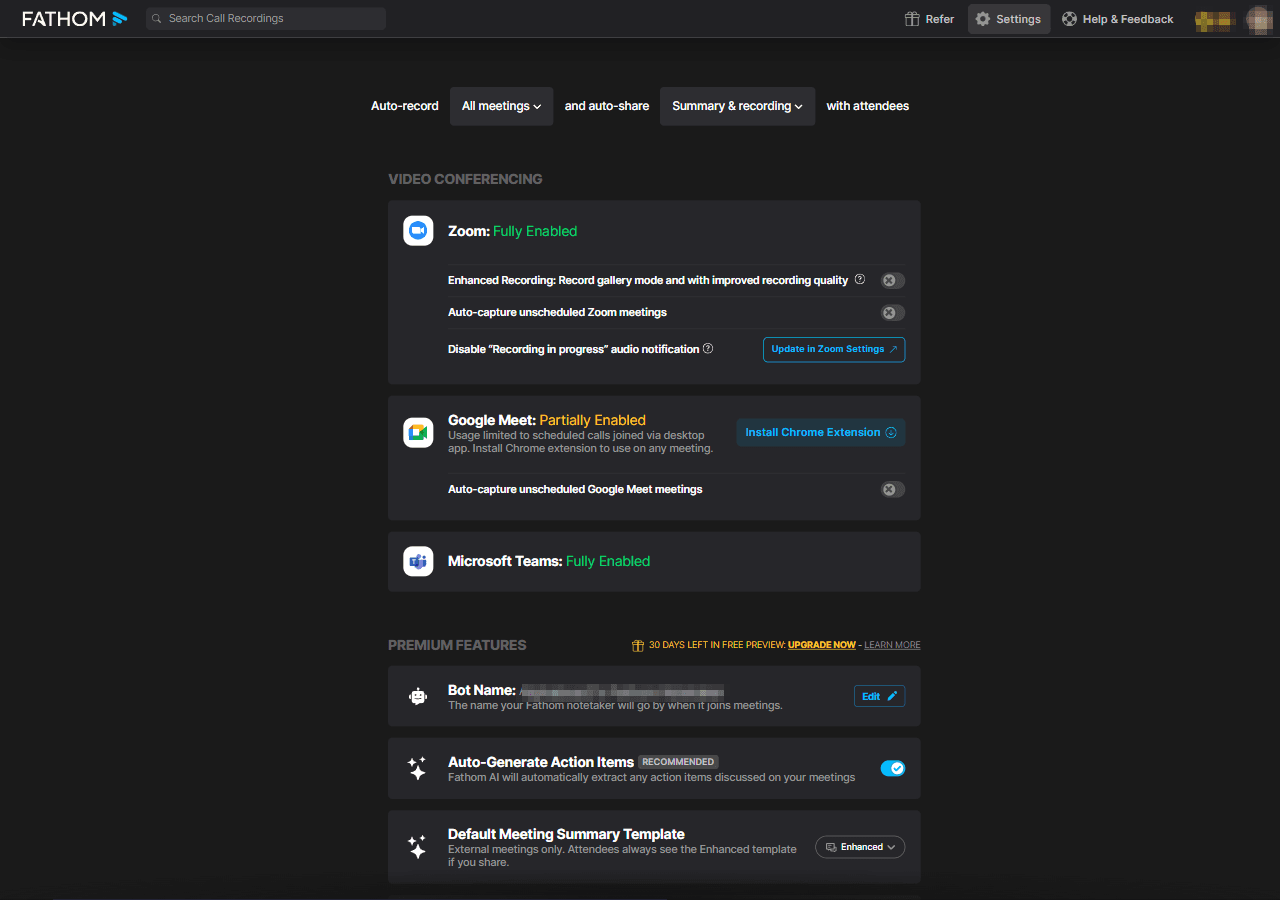
The top of Settings Check connections
Under Video Conferencing, the account used for this guide showed: Zoom Fully Enabled, Google Meet Partially Enabled, Teams Fully Enabled. For Meet, "Partially Enabled" means that without the Chrome extension the tool works only for scheduled calls through the Desktop app.
Go to Part 5 before any meeting
Do not click Delete Account.
4.5 Connecting Google Meet, Zoom and Teams
Google Meet (tested hands-on, without the Chrome extension).
Create a Google Calendar event with a Meet link
At calendar.google.com click Create, then Event. Add a title and time, and click Add Google Meet video conferencing. A Join with Google Meet button and a link appear. Click Save.
What we observed: in our test the Location field stayed empty, and the bot joined. The help center says the link should appear in Location, not only in the description. If the bot does not join, paste the link into Location as well (not tested). The event must be on the primary calendar.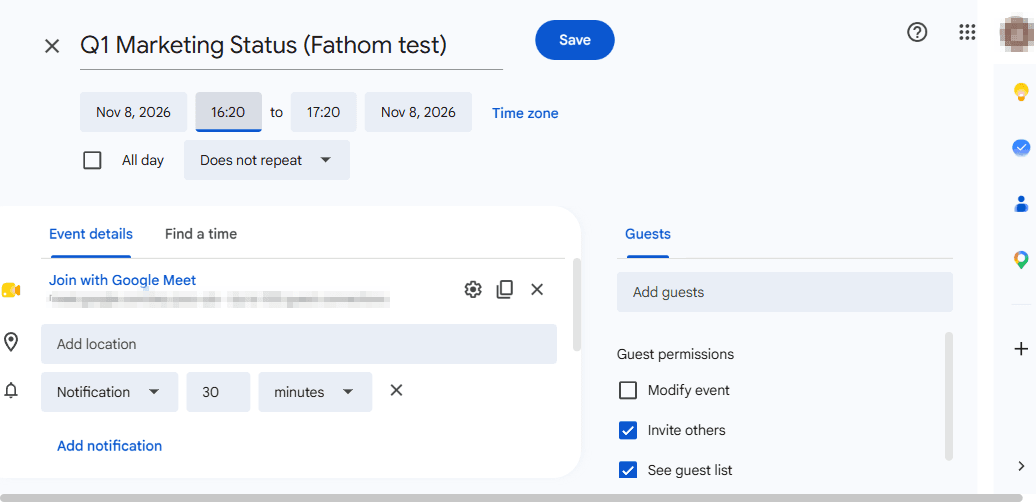
A calendar event with a Meet link Keep the Fathom Classic app open
on your computer. A scheduled event with the app open was enough for the bot to join. An unscheduled meeting: not tested.
Chrome extension (optional, per the official documentation, not tested)
In Settings › Fathom Apps, next to Chrome Extension, click Install and approve the permissions. The Auto-capture unscheduled Google Meet meetings toggle then becomes available. No screenshot for this step.
Zoom (tested hands-on through the Desktop route, on a free Zoom account).
Connect Zoom
In Settings › Video Conferencing click Connect next to Zoom and approve. Anyone still on the previous version must connect Zoom from 2 March 2026 for the bot to join (Quick Start Guide: Zoom App and Partially Enabled, checked: 2026-11-08). On the account used for this guide Zoom showed Fully Enabled, and Fathom Apps listed the Zoom App with a Disconnect button. How it was connected: not documented. Since the test used the Desktop route, it is unclear whether the connection is needed for the bot to join. No screenshot for this step.
Join a Zoom meeting
with the Fathom Classic app open. Next to the calendar event a floating Fathom window appears with a red Start Recording button. If the browser asks "Open Fathom?", click Open Fathom. Do not tick "Always allow" if you want to approve each time. No screenshot for this step.
Approval request from Zoom
A message "…Fathom Notetaker is requesting to record this meeting" may appear with Approve and Decline. What happens after each button: not tested. No screenshot for this step.
The Zoom App route from the Marketplace
(Per the official documentation, not tested): a host and a paid Zoom account are required. On a free account the Desktop app works. In an organization, ask your Zoom admin for pre-approval (Zoom Admin Approval).
Microsoft Teams (per the official documentation, not tested). A Microsoft calendar is required, with a meeting on the primary calendar that has a Teams web link. The Desktop app must be open and signed in. For an ad-hoc meeting: Add to Meeting with a link starting with teams.microsoft.com/l/meetup-join/. Teams may label Fathom "Unverified"; this is a Microsoft label, not a failure. Organization policy can block recording (Set Up Fathom for Microsoft Teams).
4.6 Checking That Everything Works
Open Settings › Video Conferencing
and make sure the tool you will record in is connected.
Make sure the Fathom Classic app is open
and that you are signed in with the same account as on the website.
Open My Calls
on the website. Until a call has been recorded, it shows "No call recordings". If you chose No meetings. I'll record manually, it also shows "Auto-record is disabled", which is fine.
Make sure the scheduled event appears
in the app or on the website (not tested).
If something does not work, go to Part 8.
5. First Settings, Security and Privacy
By the end of this part you will know what to change before the first recording, and what must not be recorded. The settings were checked on a new Free account on Windows (2026-11-08). Every change is saved immediately and persists after a refresh.
Security Card
| Item | Finding |
|---|---|
| Rating | Yellow, medium risk (security review, 2026-11-08). The tool records other people, so notice and consent are required |
| Language and accuracy (tested hands-on) | No Hebrew support. An incorrect English transcript may look credible. Even in English two sentences were lost, including an amount of $96,000. Compare amounts against the recording |
| Ownership | Superhuman (formerly Grammarly) announced on 14 September 2026 that it was acquiring Fathom (the announcement, checked: 2026-11-08). According to the announcement, the meeting-data repository "can become available to AI agents". The announcement does not address data protections or model training. Whether the deal has closed legally: not checked |
| Digital signature | The installer carries a valid signature from Superhuman Platform Inc. (checked 2026-11-08) |
| Use of data to improve the AI | The setting Use my anonymized data to improve Fathom's AI for everyone was on by default. According to the privacy policy (updated 16 August 2026), Fathom may train internal models on de-identified data, and third parties are not permitted to. What this data includes: not defined |
| New-account defaults | Automatic recording: All meetings. Sharing after a meeting: Summary & recording. Share link: anyone who has it. Automatic consent request: off |
| The bot in the Meet lobby | The bot waits and requires host approval. Admit only the bot |
| Recording after the host leaves | The recording continued when the host left while the bot and another participant stayed. It stopped when the bot was removed (Part 6). Host alone: not tested |
| Recap email | Even with automatic sharing set to Nothing, a Recap email with a summary and action items reached the host. What the second participant received: not tested |
| Data location and deletion | Storage is in the US. Per the policy, transfers to other countries are possible. After an account is deleted, data is removed from backups after 7 days according to the help center, and within 30 days according to the terms |
| Standards | SOC 2 Type II: stated in the official help center (article). The report itself was not read. GDPR and HIPAA: presented as claims on the home page and in the article, and not verified. A BAA is listed on the pricing page for Team, Business and Enterprise; it is a contractual document, not proof of compliance |
| Check in your organization | Whether US storage fits your organization's policy. The terms allow Fathom to transfer the data to another party without notice |
| Do not put into the tool | Customers' personal medical or financial information without consent. Sensitive internal conversations (HR, legal). Anyone who has not agreed to be recorded |
This is not legal advice. Check notice and consent obligations under Israeli law and the laws of the participants' countries. In an organization that processes customers' personal data, also check compliance with Amendment 13 to the Privacy Protection Law.
Settings to Change Right Away
Go through the list in order in Settings.
| # | Setting | Path | Default | What to choose | Why |
|---|---|---|---|---|---|
| 1 | Automatic recording | Settings, top row, the first menu (Auto-record) | All meetings | No meetings. I'll record manually (or Internal meetings) | This way no meeting is recorded without your decision. Exception: for the Meet exercise (Part 6), switch temporarily to All meetings and switch back afterwards |
| 2 | Sharing after a meeting | Same row, the second menu | Summary & recording | Nothing, or Summary only | This way a full recording is not sent automatically. A Recap email to the host will arrive anyway |
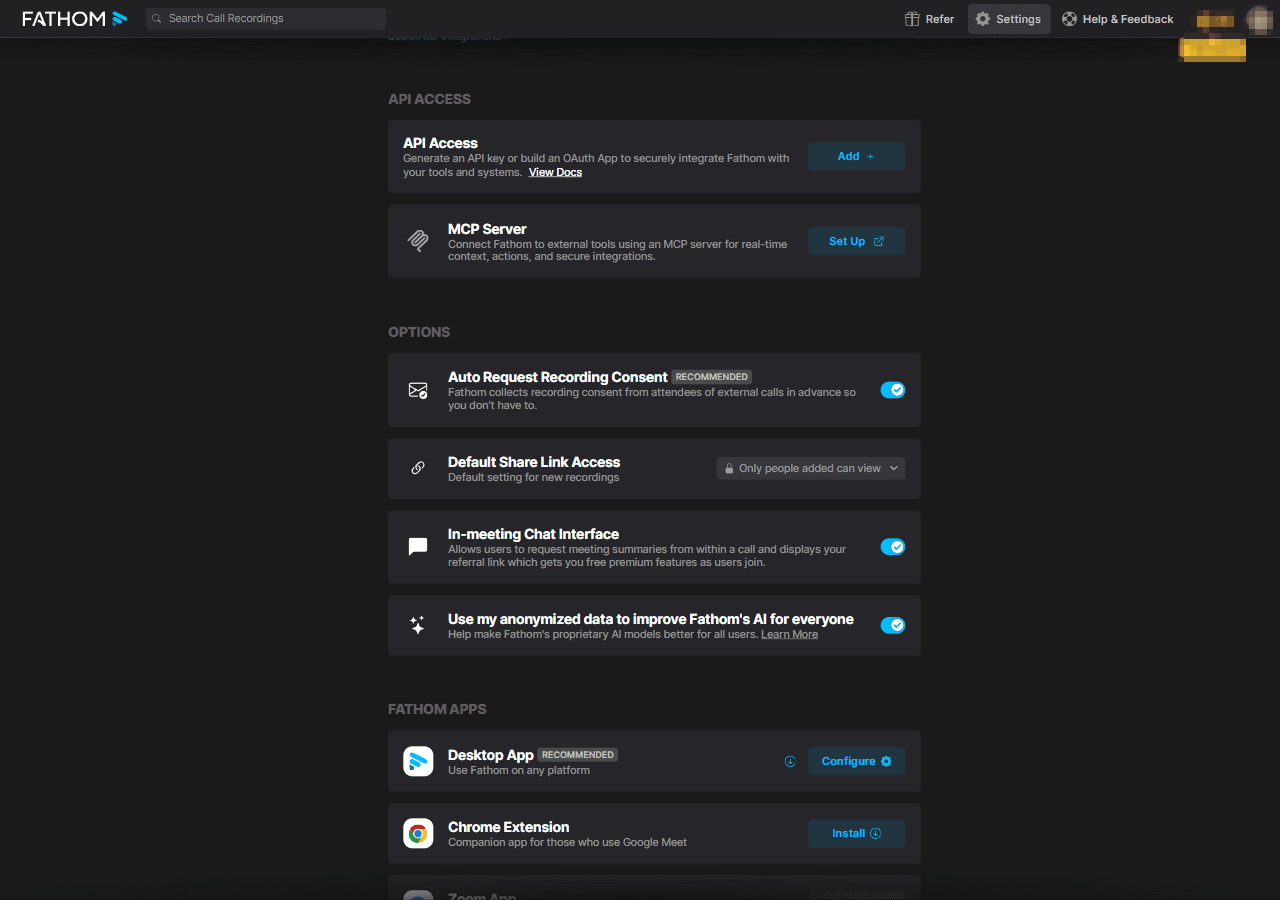
| 3 | Share link permission | Options › Default Share Link Access | Anyone with the link can view | Only people added can view | An open link reaches anyone who received it |
| 4 | Automatic consent request | Options › Auto Request Recording Consent | Off | Turn on | Fathom collects consent from external participants in advance. The email was not tested. This does not replace telling people out loud |
| 5 | Use of data to improve the AI | Options › Use my anonymized data to improve Fathom's AI for everyone | On | Turn off | See the security card. Turning it off is saved immediately, without a confirmation window |
| 6 | Notification banner | Premium Features › Recording Notification Banner | On | Leave on | Next to the toggle there is a warning that turning it off requires collecting consent as required by law |
| 7 | Bot name | Premium Features › Bot Name, then Edit | "[user name]'s Fathom Notetaker" | A clear name, with no personal information | The name is visible to every participant |
| 8 | In-meeting chat | Options › In-meeting Chat Interface | On | Leave on, or turn off if you do not want a referral link | The bot writes in the Zoom chat that it is taking notes, and the host can type leave to remove it. The setting appears to also show your referral link. According to the documentation, Zoom only (not tested) |
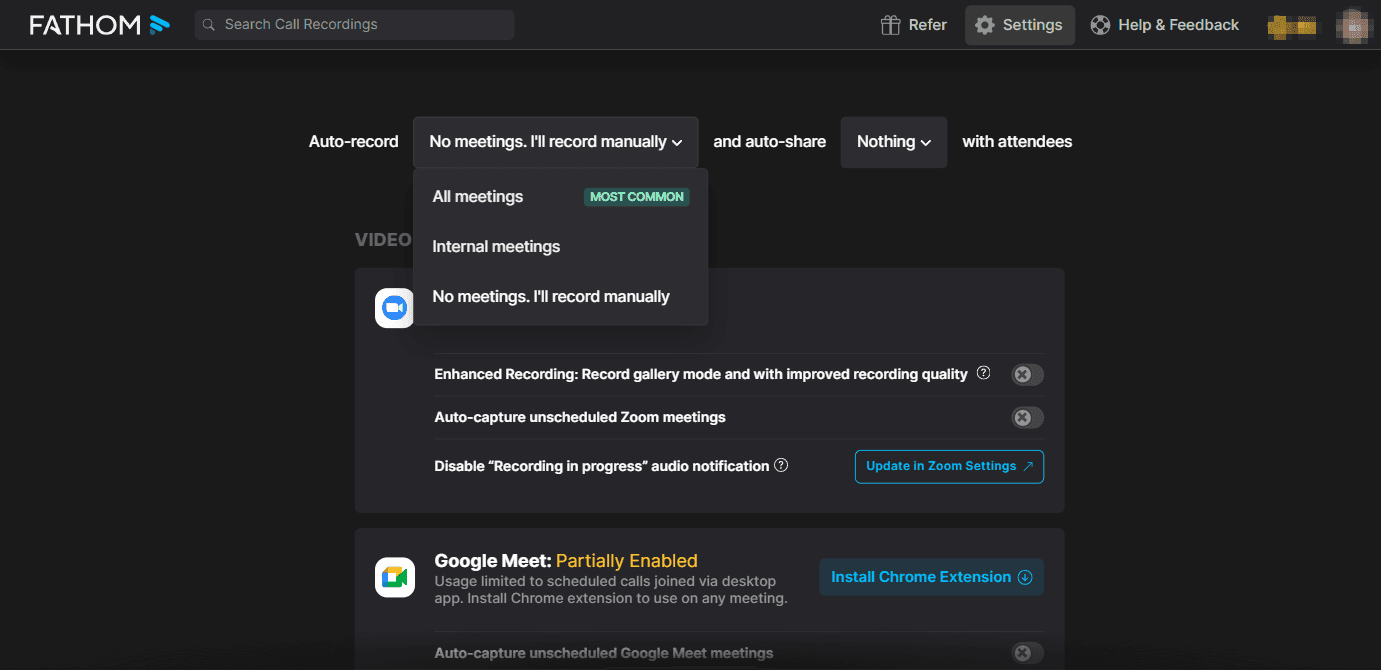
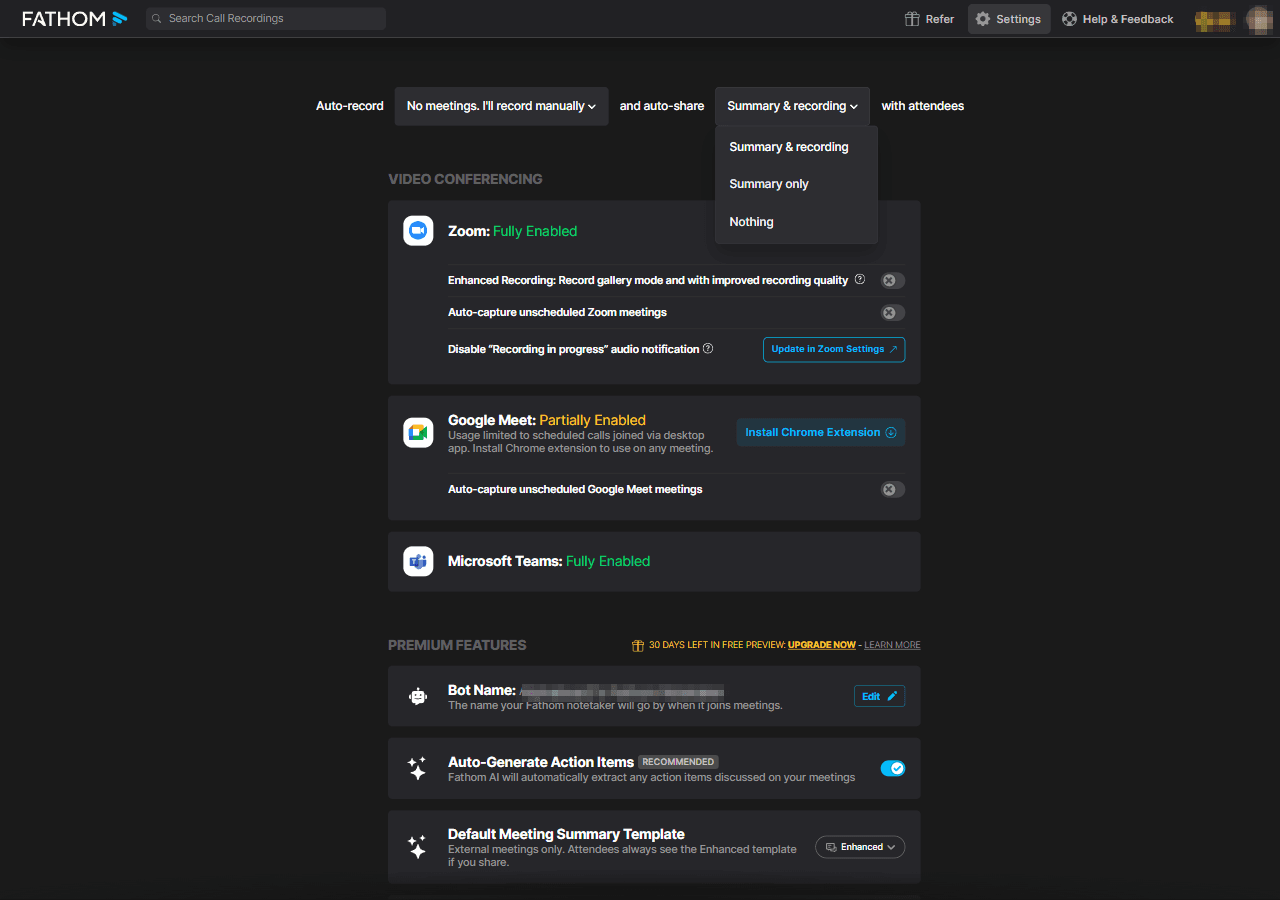
Setting 6, what it looks like: a toggle in the Premium Features section with a Preview label, and below it a warning about the consent requirement if you turn it off. No screenshot for this setting.
Setting 7, what it looks like: next to Bot Name click Edit. A text field opens with Save, Cancel and Revert to Default. Type a name and click Save. Tested up to opening the editor and cancelling it (Cancel). No screenshot for this setting.
Settings 6 and 7 appear during the Preview period and look like Premium features. What remains available afterwards: not tested.
6. Basic Use
By the end of this part you will have an English test meeting with a transcript, a summary and a list of action items, and you will know the five main uses. The exercise is designed for about 15 minutes. Tested hands-on in Google Meet.
First Exercise: A Test Meeting in Google Meet
Preparation (3 minutes): dummy data only, and an English script of about 5 minutes of speech that you read aloud (alone or with someone who agreed to be recorded). Write yourself an answer key: names, numbers, dates and action items. In our test 939 words were read. The template itself was not run verbatim:
Hi everyone, this is the [quarter] [team] status meeting with [client name]. With me today are [name 1] and [name 2]. Today is [day and date].
The approved budget is [amount] dollars and our target is [number] leads by [date]. So far we have collected [number] leads.
The main problem is cost per lead. It went up from [amount] dollars to [amount] dollars.
We decided to move [percent] percent of the budget from [channel A] to [channel B] for a [number] week test.
Action item one. [Name 1] prepares [deliverable] by [day and date].
Action item two. [Name 2] sends [report] to [client name] by [day and date] at [time].
Thank you all, that is it for today.
Expand each point into a few sentences, up to about 900 words.
Set up privacy
Apply settings 2–5 from Part 5. For setting 1, temporarily choose All meetings, because only then did the bot join on its own in our test.
Create a Google Calendar event with a Meet link
as in Part 4.5, and open Fathom Classic.
Join the meeting and announce out loud that it is being recorded
After about 5 seconds the floating Fathom window shows Recorder joining and then Recorder in waiting room. If nothing appears, make sure the app is open and the event is on the connected calendar. Out of three Meet runs: in the first the bot did not join, and a window with Start Meeting appeared instead (clicking it was not tested). In the third it joined. The second run was not documented, and the reason for the difference is unknown.
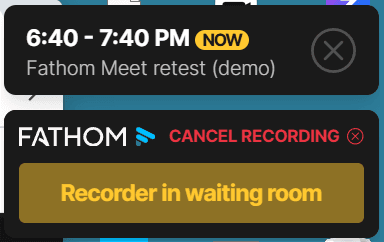
The floating window: Recorder in waiting room Admit the bot from the Meet lobby
It appears as "[account name]'s Fathom Notetaker". In the lobby there is an Admit link next to the bot. Click it only next to the bot's name.
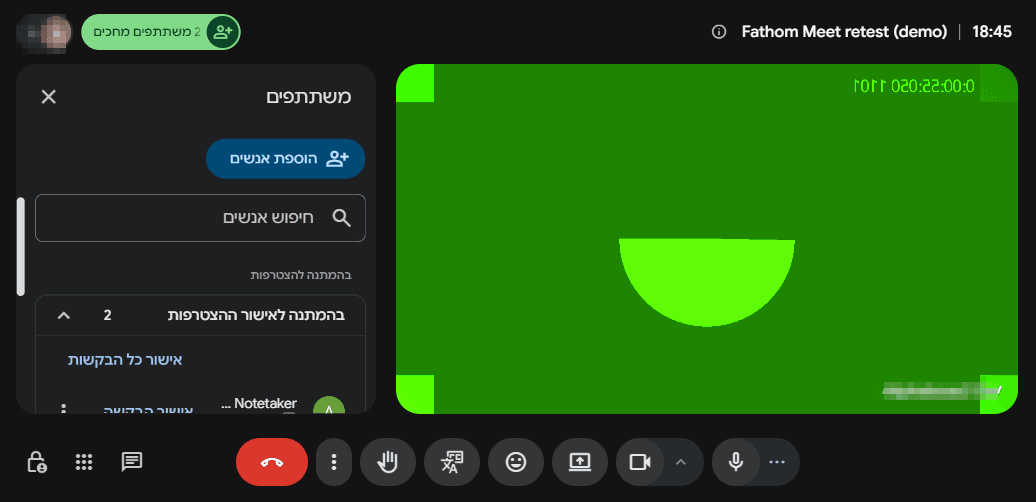
The Meet lobby: the bot and another participant Note: above the list there is Admit all. Clicking it also admits every other waiting participant, for example people you do not know. Do not click it.
Wait for the recording to start
After admission the window shows Awaiting Attendees, because with one participant the bot waits. About 30 seconds later, when a second participant joined, it switched to END / PAUSE / Highlight, and "Recording and taking notes" appeared on the bot. If you are alone, invite a second participant or click Skip & Start Recording Now in the Fathom window (observed in Zoom, not tested in Meet).
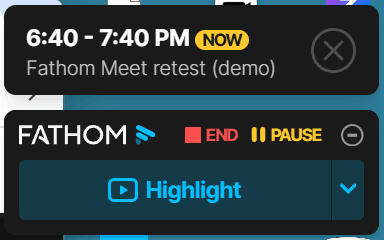
The floating window during recording Read the script aloud
at a normal pace.
Stop the recording
Leaving the meeting did not stop it: the bot and another human participant stayed, the END / PAUSE window stayed open and the Monologue counter kept running. In our test the recording stopped after the bot was removed from the Meet participant list: More actions, then Remove from call. Do not tick report or block. If you have already left, rejoin the same link and remove the bot. The host removed it in our test. A participant who is not the host: not tested. Clicking END in the Fathom window was not tested. There is no screenshot of the removal menu.
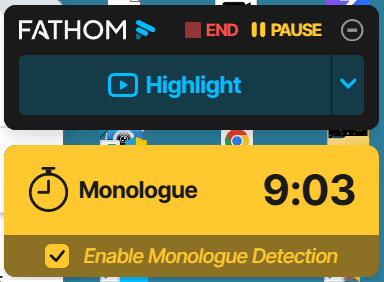
The recording continues after the host leaves Check that the window switched to Meeting Ended
It shows Send to Attendees, Copy Share Link ("Only people added can view") and View Recording & Summary. Now switch Auto-record back to No meetings. I'll record manually.
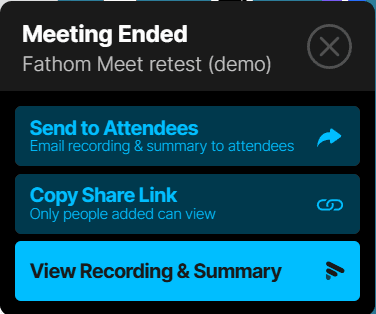
The Meeting Ended window Open the recording
Click View Recording & Summary, or open My Calls on the website. Processing took about a minute.
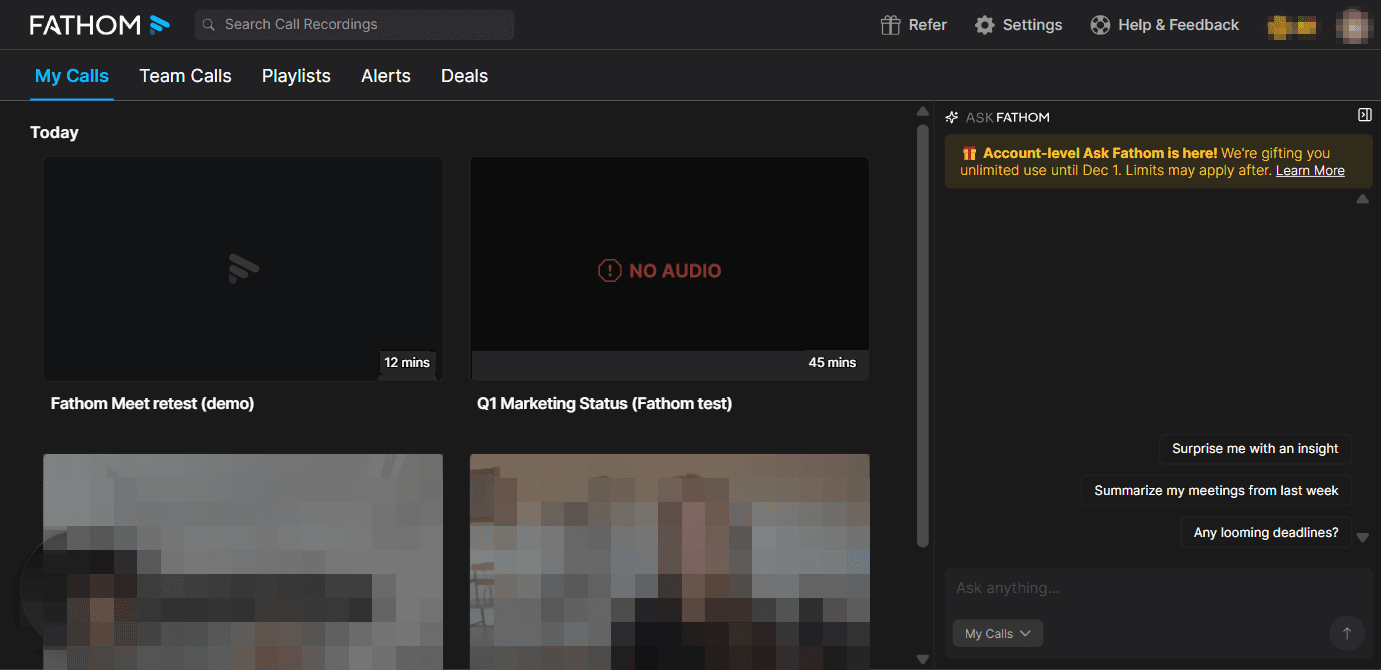
The My Calls page with the recording Delete the test call
On the call page, hover over the three dots next to Share, and click Delete Call. Deletion also removes the notes and cannot be undone (Deleting a Call Recording, checked: 2026-11-08). Per the official documentation, not tested. No screenshot for this step. A Recap email that has already arrived stays in your inbox.
Output: a transcript, a summary, a list of action items and a Recap email. The scores (out of 5) come from one meeting with one synthetic voice and do not represent accents, multiple speakers or background noise. Speaker identification was not tested. Time saved was not measured.
- Transcript, 4: names, amounts, percentages and dates were correct. Two sentences were lost (including $96,000) and one incorrect sequence was produced.
- Summary, 4.5: clear structure and correct numbers. One item was attributed to the wrong participant.
- Action items, 3.5: all four action items were captured, but owners and dates were partial, and an item that was never said was added.
- Recap email, 4. Ask Fathom, 4. Bot joining and control, 2.5.
Use 1: A Summary After a Meeting
You get a summary organized by topic, without taking notes.
Open the recording
in My Calls.
Click the Summary tab
The summary is generated automatically (default: the Enhanced template).
Open the Transcript tab
and compare numbers and names against the recording before passing anything on.
If "Meeting too short to generate a summary" appears, record a longer meeting. The minimum threshold is unknown.
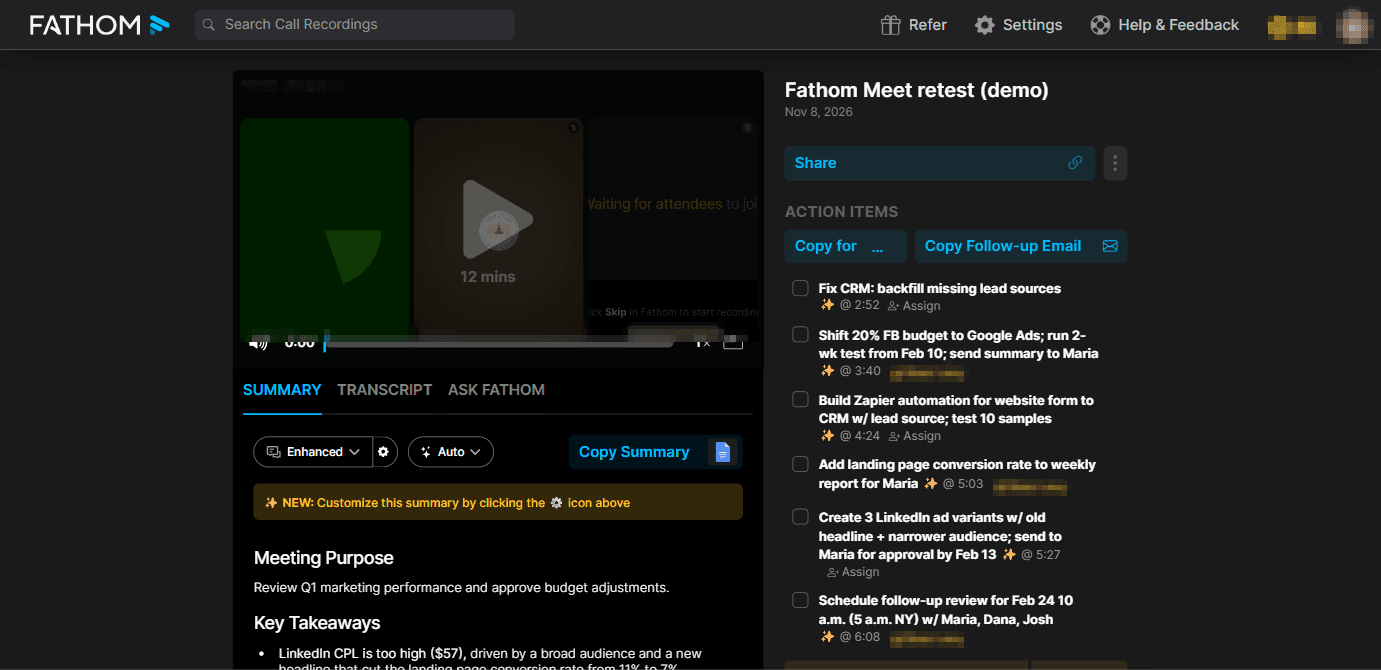
The call page: Summary, Transcript and Ask Fathom tabs under the video, and ACTION ITEMS on the right 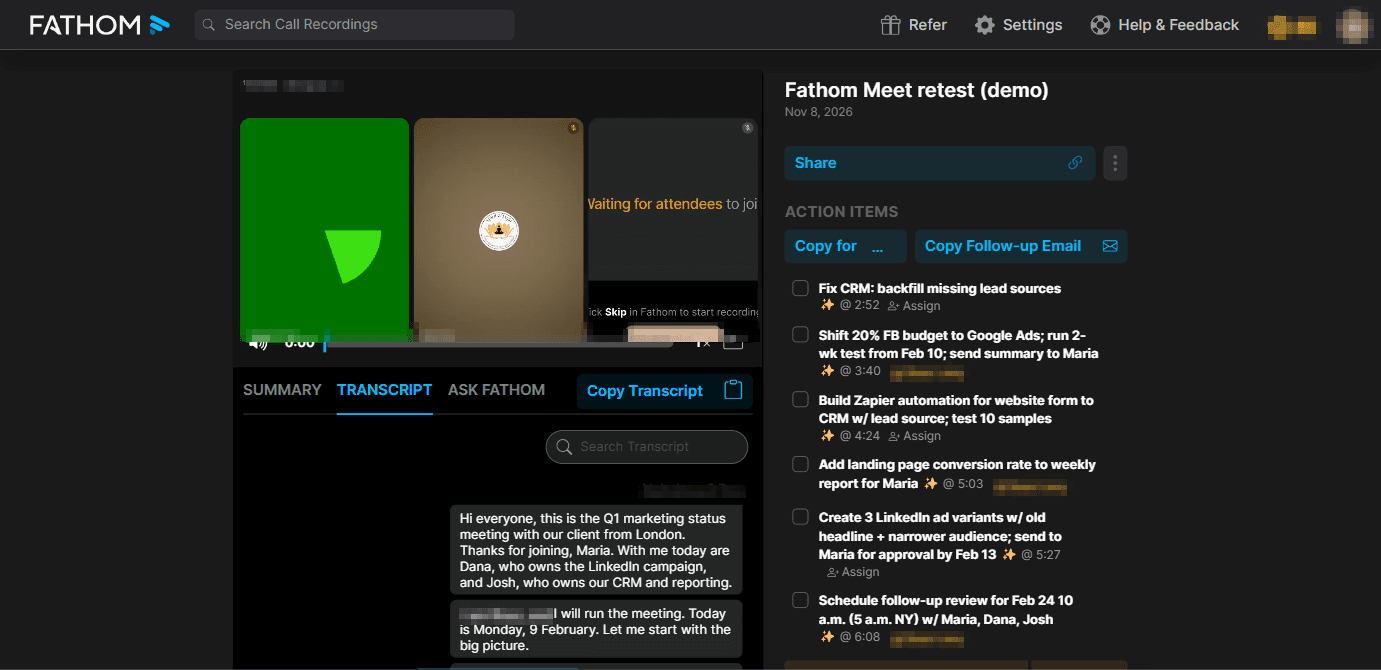
The Transcript tab
Use 2: A List of Action Items
You get action items with a timestamp. In our test they were produced during the Preview.
Open the recording
and review ACTION ITEMS on the right (in the Use 1 screenshot).
Check owner and date
for each item. In our test some appeared without an owner or a date.
Click Assign
to assign an owner (per the documentation, not tested).
Use 3: Questions About the Meeting (Ask Fathom)
You ask a question and get an answer with a link to the moment in the recording. In our test the answer arrived within about 10 seconds and omitted one action item, so compare it with the transcript.
Open the recording
Under the video, next to the Summary and Transcript tabs, click ASK FATHOM.
Type a question
in English, for example:
What decisions were made in this call, and who owns each one? Give me a table: decision | owner | due date. If something was not said, write "not stated".Click the timestamp
in the answer to jump to that moment in the recording.
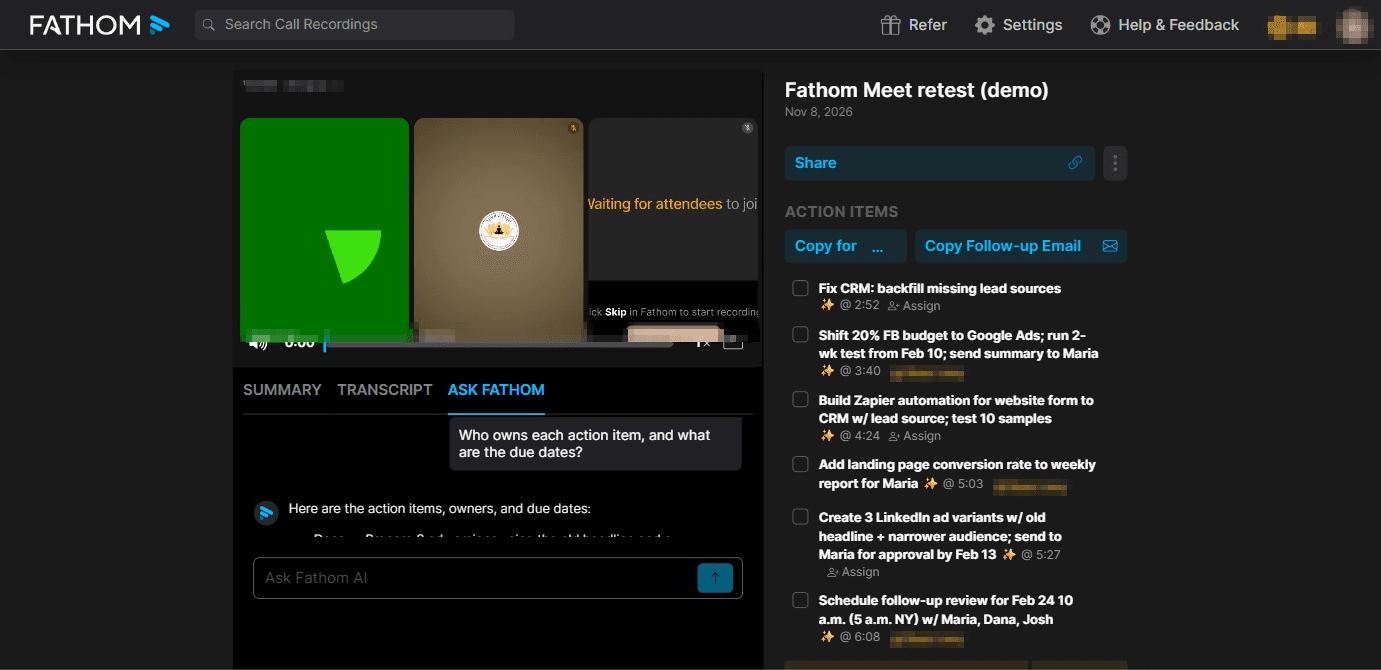
Ask Fathom
Use 4: Follow-Up Email and Sharing
Check the host's inbox
About a minute after the meeting, a message from Fathom arrived with the subject Recap for "[meeting name]", containing action items and a summary, even though automatic sharing was set to Nothing.
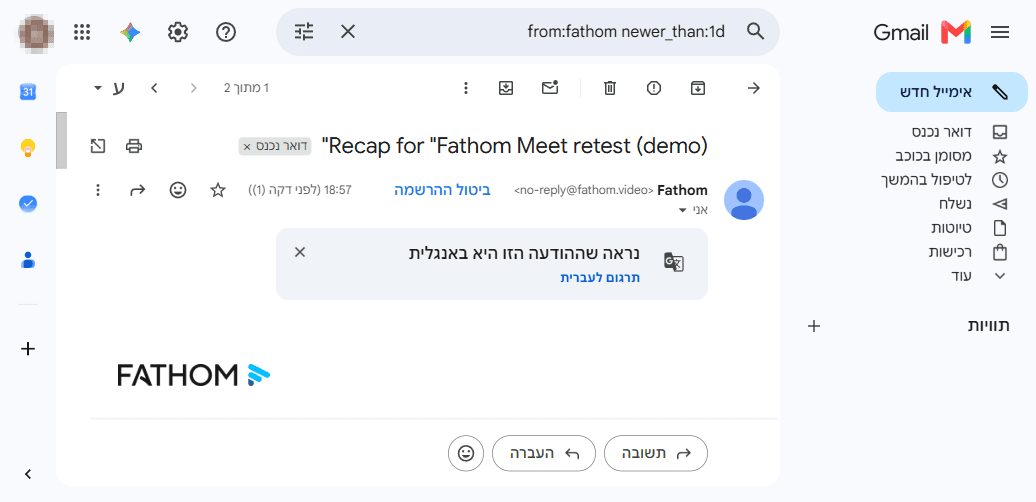
The Recap email Edit before sending
Owner assignment may be wrong. Send to Attendees and Copy Follow-up Email were not clicked.
Manual sharing
In the Meeting Ended window or on the call page, click Copy Share Link. Make sure the permission is Only people added can view.
Use 5: Recording a Zoom Meeting
Tested hands-on through the Desktop route. No screenshots for these steps.
Open Fathom Classic
and join the Zoom meeting.
In the floating Fathom window
click Start Recording. If you are alone in the meeting, a yellow Awaiting Attendees button appears instead. Click Skip & Start Recording Now. Zoom shows the message "Click Skip in Fathom to start recording now".
When the meeting ends
a Meeting Ended window appears. Click View Recording & Summary.
The bot is visible to all participants. Tell them out loud.
7. What Else You Can Do
By the end of this part you will know what exists beyond the basics. Every line is based on the official documentation and was not tested, unless stated otherwise.
- Highlights, trimming and sharing clips: Marking Highlights, Trimming Calls, Sharing Call Recordings. Highlight types were seen in the settings (not used in a call).
- Custom summary templates: adding instructions to a template (website only, Premium and above). 16 built-in templates were seen. Customizing AI Summaries.
- Account-wide Ask Fathom, Claude or ChatGPT (MCP), API and webhook: Account-Wide Ask Fathom, Fathom MCP, How to Test a Webhook.
- Zapier and Make: passing meeting output to other tools. Zapier Integration. Make is mentioned on the pricing page only.
- CRM sync (HubSpot, Salesforce, Close, GoHighLevel): HubSpot, Salesforce, Close. Extended CRM fields require a higher plan. The buttons were seen but not clicked.
- Slack and task managers (Asana, Monday, Clickup, Notion, Jira, Trello): Slack, Asana. Clips sent to Slack cannot be deleted.
- Teamwork: Folders, comments, Alerts and Trackers, Playlists, Deals and organization settings. Most are marketing screens or not accessible on Free (tested hands-on). Using Folders, Alerts, Playlists, Organization Settings.
- iOS app and the Zoom voice prompt: Fathom for iOS, Turning Off the Voice Prompt Sound. The prompt serves as notice. If you turn it off, tell people out loud.
8. Common Problems
| Problem | Why | Solution |
|---|---|---|
| You cannot reach the website after signing up (tested) | The Install Desktop App screen blocks it, and there is no Skip button | Install Fathom Classic and sign in (4.2). What Notify Me does: not tested |
| Sign-up was blocked | A consumer email with no meeting in the coming week | Create a meeting with a video link. A second free account with the same email is not possible (source) |
| The bot does not join Meet, and Start Meeting appears (tested in one run out of three) | The reason is unknown. With the same settings it joined in the third run | Make sure Auto-record is not No meetings, that the app is open and that the event is on the primary calendar. Try pasting the Meet link into Location as well (not tested). Click Start Meeting (not tested) |
| The bot waits and does not record (tested) | In the lobby: Meet requires host approval. On Awaiting Attendees: there is only one participant | Admit the bot from the lobby. Invite a second participant or click Skip & Start Recording Now |
| The recording continues after I left (tested) | The bot and another human participant stayed in the meeting | Rejoin the same link and remove the bot from the participant list. END in the Fathom window was not tested |
| Zoom: Partially Enabled, no access, or an Approve request | Zoom is not connected, a Zoom admin's approval is missing, or Zoom asks to approve the recording | Click Connect next to Zoom in Settings. In an organization, ask your Zoom admin for pre-approval. What happens after Approve or Decline: not tested |
| Incorrect transcript, "Meeting too short…" or "None detected" (tested) | A meeting in Hebrew (unsupported language). The minimum length threshold was not tested | Do not use it for meetings in Hebrew. In English, record a longer meeting. Action items can be added manually in the Transcript tab |
| Google Meet: Partially Enabled, and the Auto-capture unscheduled toggle is disabled (tested) | The Chrome extension is not installed | Schedule the meeting on the calendar, or install the extension (not tested) |
9. Limitations and Alternatives
By the end of this part you will know what the tool does not offer, and what to check if your meetings are in Hebrew.
Limitations and Things to Know
- Language: no Hebrew (tested hands-on, 2026-11-08). In a test of a Hebrew Zoom meeting (about 2 minutes, dummy data) the transcript contained English text that was never said, without a single Hebrew word. The summary was "Meeting too short to generate a summary", and the action items "None detected", although three were stated. The languages article lists 38 transcription languages (edit date not verified), and the Overview page lists seven languages "natively". The difference between the numbers was not resolved. Ask Fathom translates into 29 additional languages; the list was not checked.
- Free plan: unlimited recording and transcription. Action items and Ask Fathom are Premium features, and they are open during the 30-day Preview. What Free keeps afterwards: not tested. Advanced summaries: 5 per month, according to the help center only.
- Price and billing: prices in Part 2 (checked: 2026-11-08). The pricing page shows a "90 day guarantee" badge on every plan, including Free, without explanation. The terms (updated 4 March 2026) state that payments are non-refundable and that subscriptions renew automatically. The contradiction was not resolved. Do not assume there is a refund, and get written confirmation before paying.
- Privacy: under the terms, responsibility for obtaining consent from every participant is yours. The terms are governed by California law, with binding arbitration. The policy and the terms predate the acquisition announcement of 14 September 2026, and therefore do not address it.
- Platforms: on Windows only Fathom Classic with a bot. Bot-free mode (beta) is marked Coming Soon on Windows, and per the documentation is available on Mac (not tested).
- Bot control: host approval in the lobby is required, the bot waits while there is one participant, and the recording does not stop when the host leaves while another participant stays.
- Unknown: what de-identified data includes; whether the policy will change after the acquisition; how Fathom identifies speakers; how Zoom was connected on the account used for this guide.
Alternatives for Meetings in Hebrew
None of the alternatives was tested against Fathom, and none went through a security review. The "Hebrew" column summarizes an official page read on 2026-11-08 and was not tested hands-on. Before a real meeting, run a two-minute test in Hebrew with dummy data: names, numbers, three action items, and the terms CRM and Zapier.
| Tool | How it differs | Hebrew (per official page) | When to choose it |
|---|---|---|---|
| Fireflies | A bot that joins, many integrations | Appears in the language list (languages page) | When you need Hebrew transcription and automation |
| Granola | No bot, listens to the computer's audio | Listed for desktop (macOS and Windows), not for the mobile apps (page) | When you do not want a visible bot in the call |
| Microsoft Teams (transcription) | Built into Teams | "Hebrew (Israel)" is on the list (page). A Copilot summary in Hebrew: not verified | For an organization already on Microsoft 365 |
| Otter | Live transcription and summaries | Not listed: only English, Spanish, French and Japanese (page) | For meetings in those languages only |
| Zoom AI Companion | Built into paid Zoom | Not verified; no official language page was found | For teams entirely on Zoom, after verifying Hebrew with Zoom |
10. Sources and Updates
Pricing and languages (official, checked: 2026-11-08): fathom.ai/pricing (checked visually), Fathom Overview, Transcription languages (edit date not verified), Free vs. Premium for Individuals.
Help center, installation and setup (official, checked: 2026-11-08): Quick Start Guide (edited 3.6.2026), Signing In to Fathom, Fathom Desktop App (edited 30.6.2026), Mac permissions (edited 26.10.2026), Using Fathom with Google Meet (edited 5.11.2026), Zoom App, Partially Enabled, Zoom Admin Approval, Microsoft Teams, Primary calendar, Settings Page, In-meeting chat, Automatically Requesting Recording Consent, Auto-Share, Using Ask Fathom, Deleting a Call Recording, Is Fathom secure?.
Windows (official, Microsoft, checked: 2026-11-08): Get-AuthenticodeSignature, SmartScreen, UAC.
Legal documents and the acquisition announcement (official, checked: 2026-11-08): Privacy policy (updated 16 August 2026), Terms of use (updated 4 March 2026), Superhuman's announcement of the Fathom acquisition (14 September 2026).
The other links in Part 7 are official help-center articles (read, not tried hands-on). The language pages of the alternatives are linked in Part 9. Third party: TechCrunch (bot-free mode, not verified with the vendor).
Last updated: 8 November 2026.
Tested on: Free plan (with the Premium Free Preview), Windows 11, Fathom Classic 1.42.18, the fathom.video website. Tested: a 12-minute English Google Meet meeting (through Desktop, without the Chrome extension), one Zoom recording (in Hebrew) on a free Zoom account, and the pricing page. Not tested: Mac, Team, Business, Teams, iOS, the Chrome extension and speaker identification. Steps not marked "tested hands-on" come from the documentation.
What This Guide Does Not Cover
- Meetings in Hebrew: not supported.
- Mac, Microsoft Teams, iOS, the Chrome extension and bot-free mode: per the official documentation, not tested.
- Speaker identification and the Team, Business and Enterprise plans: not tested.
- Advanced capabilities (CRM, API, MCP): a list with links only.
- Tested on Windows 11, Free plan with Premium Preview, Fathom Classic 1.42.18, on 8 November 2026.
Sources
- fathom.ai/pricing
- Fathom Overview
- Transcription languages
- Free vs. Premium for Individuals
- Quick Start Guide
- Signing In to Fathom
- Fathom Desktop App
- Mac permissions
- Using Fathom with Google Meet
- Zoom App
- Partially Enabled
- Zoom Admin Approval
- Microsoft Teams
- Primary calendar
- Settings Page
- In-meeting chat
- Automatically Requesting Recording Consent
- Auto-Share
- Using Ask Fathom
- Deleting a Call Recording
- Is Fathom secure?
- Get-AuthenticodeSignature
- SmartScreen
- UAC
- Privacy policy
- Terms of use
- Superhuman's announcement of the Fathom acquisition
- TechCrunch
Want to Go Through It Together?
A guide is a starting point. An assessment of your environment will give you a precise answer.